Why Your PlayStation Plus Game Is Locked and How to Fix It
You go to launch a title from your library, and instead of the game starting, you see a small padlock icon sitting over the cover art. PlayStation Plus PS5 games occasionally get locked, and the reasons range from a lapsed subscription to a licensing glitch that has nothing to do with anything you did. This guide breaks down every common cause and walks through the fixes that actually work.
This article is part of our PlayStation Plus Free Games July 2026: Complete Guide, and it pairs closely with our piece on Downloading & Managing PS Plus Games, which covers storage, installs, and library organization once your games are unlocked and playable.
What the Lock Icon Actually Means
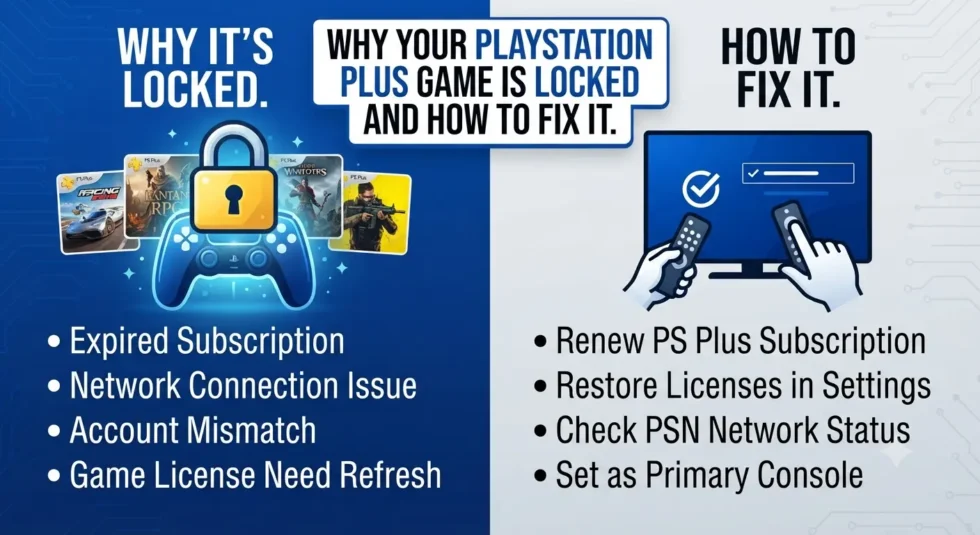
A locked game simply means your console can’t verify that you have the license to play it. PlayStation Plus titles work through digital licenses tied to your account, and when that license can’t be confirmed, the system blocks access as a safeguard. Locked games remain downloaded on your hard drive; you just can’t launch them until the underlying issue gets resolved.
Common Reasons a PS Plus Game Gets Locked
An Expired or Lapsed Subscription
This is the most frequent cause by far. Once your PlayStation Plus membership lapses, every game you claimed through the service becomes inaccessible, even ones already installed on your console. Reactivating your subscription typically restores access within minutes.
Your Console Isn’t Set as Primary
Sony allows one PS5 or PS4 per account to be designated as the primary console. If PS Plus games are locked on a secondary console and the account holder isn’t signed in, those titles won’t launch. Setting the correct console as primary, found under Account Management in your settings, usually solves this instantly.
PSN Outages or Server Issues
Sony’s servers occasionally experience hiccups that prevent license verification altogether. Widespread lockouts have happened before, with players reporting sudden loss of access to their entire library, not just PS Plus titles. Checking the PlayStation Network status page will confirm whether the problem is on Sony’s end rather than yours.
Catalog Glitches Removing Games Early
Sometimes a title gets pulled from the PS5 Plus catalog earlier than its scheduled removal date due to a backend error. Several games have vanished from the Extra and Premium catalogs without warning, only to quietly reappear weeks later once Sony resolved the glitch. If a game you claimed suddenly shows a lock and a purchase prompt instead, this kind of glitch may be the culprit.
Corrupted License Data
License files stored on your console can become corrupted after a failed update, an interrupted download, or a system crash. This doesn’t happen often, but when it does, the fix involves restoring your licenses manually rather than waiting it out.
How to Fix a Locked PS Plus Game
Work through these steps in order, since each one rules out a specific cause before moving to the next.
- Confirm your subscription is active. Check your account settings or the PlayStation Store to verify billing is current and PS Plus hasn’t expired.
- Check the PlayStation Network status page. If Sony reports an outage, wait it out rather than troubleshooting your own console.
- Restore your licenses. Navigate to Settings, then Account Management, then Restore Licenses on PS5, or the equivalent path on PS4. This re-syncs your console with Sony’s servers.
- Set your console as primary. Go to Account Management and confirm your PS5 or PS4 is activated as the primary system tied to your account.
- Update your system software. Go to Settings, then System, then System Software Update, since outdated firmware can interfere with license checks.
- Rebuild your database in Safe Mode as a last resort. This process rebuilds the console’s internal content index without deleting your saved games.
When to Just Wait It Out
If none of the standard fixes work and the PlayStation Network status page shows no reported issues, the problem may be a temporary catalog glitch on Sony’s side. These have historically resolved themselves within days to a few weeks, with affected games quietly restored to full access. Frustrating as it is, forcing repeated license restores or reinstalling the game rarely speeds up a server-side fix.
For everything else related to claiming, downloading, and organizing your monthly PS Plus titles, head back to the PlayStation Plus Free Games July 2026 Complete Guide or dig into our Downloading & Managing PS Plus Games cluster article.