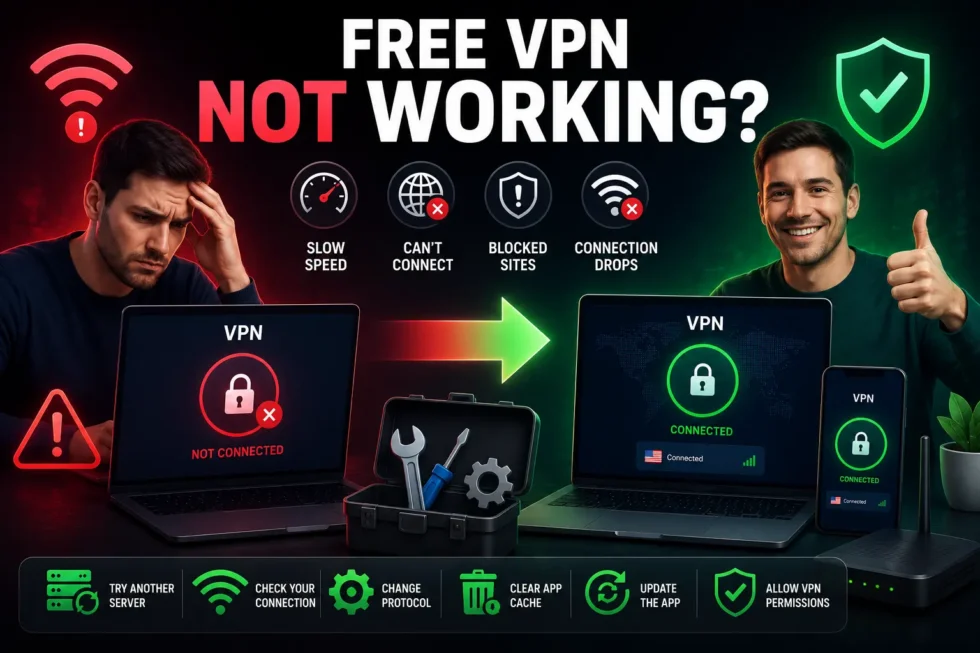
Free VPN Not Working Common Problems and Easy Fixes
A free VPN not working properly can mean many things. Maybe the app won’t connect, your IP address stays visible, or streaming sites block you anyway. This guide covers the most common reasons your free VPN stops working and gives simple fixes for each one.
This article is part of our Free VPN Complete Guide (2026), covering the best free VPNs, safety, privacy, and performance in full detail. For setup basics, check our cluster guide, How to Use a Free VPN: Setup, Features, Troubleshooting, and Common Problems, before working through the fixes below.
Why Is My Free VPN Not Working? Common Causes
Several issues cause a free VPN to malfunction. Identifying the exact symptom helps you apply the right fix quickly.
Connection Won’t Establish
Sometimes the app simply refuses to connect. Server overload often causes this problem on free plans, since too many users compete for limited resources. Outdated app versions or expired login sessions can also block a successful connection.
VPN Connects But No Internet Access
Your VPN might show “connected” yet block all browsing. This usually points to a DNS configuration issue or a conflict with your firewall. Router settings occasionally interfere too, especially if double NAT is active on your network.
Free VPN Keeps Disconnecting
Frequent disconnections often stem from unstable Wi-Fi or weak mobile signal strength. Free servers under heavy load also drop connections more often than paid alternatives. Battery-saving modes on phones sometimes kill VPN apps running in the background.
Websites or Streaming Services Detect Your VPN
Many streaming platforms actively block known VPN IP addresses. Free VPNs reuse the same limited IP pool constantly, making detection easier for these platforms. Switching servers sometimes bypasses this block, though not always successfully.
IP Address Doesn’t Change After Connecting
Check whether your app shows “connected” status accurately. Browser cache sometimes displays outdated location data even after your IP genuinely changes. Confirm your actual IP using a dedicated IP-checking website rather than trusting the app alone.
App Crashes or Freezes
Crashes typically result from corrupted installation files or insufficient device storage. Older operating systems sometimes lack compatibility with newer app updates. Background processes competing for memory can also cause the VPN app to freeze unexpectedly.
Easy Fixes for a Free VPN Not Working
Try these solutions in order before assuming your VPN needs replacing.
Restart the App and Device
Close the VPN app completely, then restart your device. This clears temporary glitches affecting most connection problems. Reopen the app afterward and attempt to connect again.
Switch Servers or Protocols
Select a different server location within the app. If the problem continues, switch to a different protocol such as WireGuard or IKEv2. Protocol changes often resolve connection failures that server switching alone cannot fix.
Check Firewall and Antivirus Settings
Security software sometimes blocks VPN traffic without any warning. Open your firewall settings and confirm the VPN app has permission to run. Temporarily disable antivirus software to test whether it causes the interference.
Update the VPN App
Outdated apps frequently lose compatibility with server infrastructure. Check your app store for available updates. Install the latest version, then restart the app before reconnecting.
Flush DNS Cache
DNS cache issues cause many “connected but no internet” problems. Open your device’s command line or terminal and run the DNS flush command for your operating system. Restart your browser afterward to apply the change fully.
Reinstall the App
When nothing else works, uninstall the VPN app entirely. Download a fresh copy from the official source, then install it again. This resolves corrupted files that simple troubleshooting cannot fix.
When Your ISP or Network Blocks Free VPN Connections
Some internet providers and public networks actively block VPN traffic. Schools, offices, and certain countries restrict VPN usage through deep packet inspection. Switching to an obfuscated server, if your provider offers one, often bypasses these restrictions successfully.
Related Guides
For installation steps on any device, visit our How to Install and Configure a Free VPN on Any Device guide. If your connection works but feels sluggish, read Why Is My Free VPN Slow? for speed-specific fixes. For a complete comparison of providers, explore our Free VPN Complete Guide (2026).
Quick Recap
Most free VPN not working issues trace back to server overload, outdated apps, or firewall conflicts. Restarting the app, switching servers, and updating software resolve the majority of cases. For deeper setup guidance and provider comparisons, return to our pillar page and troubleshooting cluster anytime.