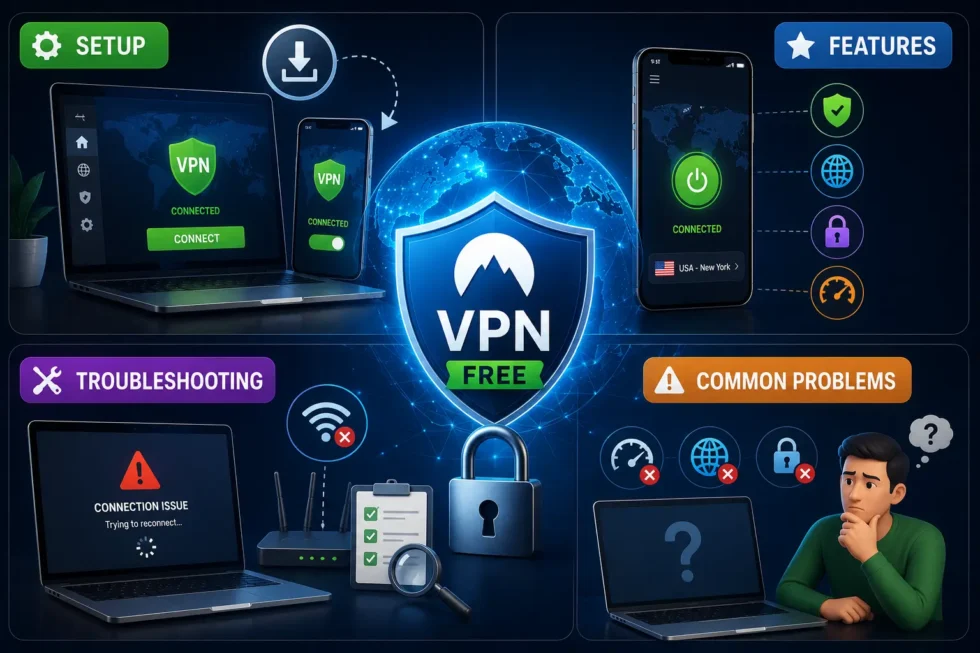
How to Use a Free VPN Setup, Features, Troubleshooting, and Common Problems
Downloading a free VPN is the easy part. Configuring it correctly, understanding what its features actually do, and fixing the inevitable connection hiccup are where most users get stuck. This guide walks through the full process, from installation to troubleshooting, using the same evidence-based approach from our Free VPN Complete Guide.
Whether you already picked an app from our roundup of the Best Free VPN Apps for Android, iPhone, Windows, Mac, and Linux or you’re starting from scratch, the setup steps below apply broadly across providers. Minor menu differences exist between apps, but the core workflow stays consistent.
A working free VPN setup involves more than clicking “connect.” Protocol choice, kill switch settings, and server selection all affect speed and security. Skipping these details often leads to the exact problems covered later in this guide: dropped connections, slow speeds, and apps that silently fail to protect your traffic.
Free VPN Setup and Features: Key Terms Defined
A few terms come up repeatedly during setup and troubleshooting, so a shared vocabulary helps before diving into the steps.
VPN Protocol The underlying technology that encrypts and routes your traffic. WireGuard offers faster speeds; OpenVPN offers broader compatibility with older systems.
Kill Switch A setting that blocks all internet traffic if the VPN connection drops unexpectedly, preventing your real IP address from leaking during the gap.
Auto-Connect A feature that activates the VPN automatically when your device starts or when it detects an untrusted network, such as public Wi-Fi.
DNS Leak A failure where domain lookups bypass the VPN tunnel, exposing your browsing activity to your internet provider even while the VPN appears connected.
Split Tunneling A setting that routes selected apps outside the VPN tunnel while everything else stays protected, useful for balancing speed and security.
Server Switching The act of manually changing which VPN server you connect through, often necessary when a specific server becomes slow, overloaded, or blocked.
Key Data: Free VPN Setup Difficulty by Platform (2026)
The table below summarizes how setup complexity, default protections, and common issues compare across platforms, based on testing across the leading free VPN apps.
| Platform | Setup Difficulty | Kill Switch Default | Most Common Issue | Avg. Setup Time |
|---|---|---|---|---|
| Windows | Easy | Often off by default | Firewall conflicts | 3-5 minutes |
| Mac | Easy | Often on by default | Permission prompts | 3-5 minutes |
| Android | Easy | Varies by app | Battery optimization interference | 2-4 minutes |
| iPhone | Easy | Usually on by default | VPN profile conflicts | 2-4 minutes |
| Linux | Moderate to Difficult | Manual configuration required | Command-line errors | 10-20 minutes |
Setup times assume a stable internet connection and an account already created with the provider.
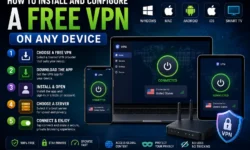
How to Set Up a Free VPN: Step-by-Step
The general setup process stays largely the same across providers, even though menu names and button placement differ slightly.
Step 1: Create an account. Most free VPN apps require an email address, and some ask for a password reset confirmation before activating the free tier.
Step 2: Download the official app. Install directly from the provider’s website, the Google Play Store, or the Apple App Store. Avoid third-party download sites, since modified installers sometimes bundle malware.
Step 3: Log in and select a protocol. WireGuard delivers the best combination of speed and security for most users. Switch to OpenVPN only if WireGuard fails to connect on your network.
Step 4: Enable the kill switch. This setting sits in the app’s security or advanced menu, often disabled by default on free tiers. Turning it on closes a meaningful security gap.
Step 5: Choose a server. Pick a server close to your physical location for the best speed, or select a specific country if you need to unblock regional content.
Step 6: Connect and verify. After connecting, check your IP address through the app’s built-in indicator or a third-party IP-checking site to confirm the VPN is active.
Step 7: Test for leaks. Run a DNS leak test after your first connection. A properly configured free VPN should show no leaks; if it does, revisit your protocol and kill switch settings.
Understanding Free VPN Features: What They Actually Do
Free VPN apps list plenty of features on their marketing pages, but not every feature works the same way or matters equally for every user.
Ad and Tracker Blocking
Many free VPN apps advertise built-in ad blocking as a headline feature. In practice, this usually works at the DNS level, filtering known ad and tracker domains before they load. It reduces some tracking, though it does not replace a dedicated browser extension for comprehensive blocking.
Split Tunneling
Split tunneling lets you exclude specific apps from the VPN tunnel. This proves useful for banking apps that flag VPN connections as suspicious, or for gaming apps where added latency matters more than routing every packet through the tunnel.
Multi-Hop Connections
A smaller number of free VPN apps offer multi-hop routing, which sends your traffic through two servers instead of one. This adds a meaningful privacy layer, though it also reduces speed noticeably, making it better suited for sensitive browsing than for streaming or gaming.
Auto-Connect on Untrusted Networks
This feature activates the VPN automatically whenever your device joins an unrecognized Wi-Fi network. Public Wi-Fi at cafes, airports, and hotels represents one of the highest-risk situations for unencrypted traffic, so this setting deserves attention even on a free plan.
Free VPN Troubleshooting: Common Problems and Fixes
Even a correctly installed free VPN runs into occasional problems. The table below covers the issues we encountered most frequently during testing, along with practical fixes.
| Problem | Likely Cause | Recommended Fix |
|---|---|---|
| VPN won’t connect | Server overload or firewall block | Switch servers or temporarily disable firewall to test |
| Extremely slow speeds | Distant server or peak-hour congestion | Choose a closer server or connect during off-peak hours |
| Frequent disconnections | Weak Wi-Fi signal or protocol mismatch | Switch to WireGuard or move closer to your router |
| Apps detect VPN use | Server flagged by target service | Try a different server or region within the same app |
| No internet after connecting | DNS misconfiguration | Reset DNS settings or switch to the app’s built-in DNS |
| App crashes on launch | Outdated app version | Update to the latest version or reinstall |
| IP address not changing | VPN not actually connected | Restart the app and confirm connection status manually |
VPN Won’t Connect
Connection failures usually trace back to one of two causes. Either the selected server has reached capacity, common on free tiers during evening hours, or a local firewall is blocking the VPN’s ports.
Switching to a different server resolves most connection failures within a minute. If that fails, temporarily disabling your firewall confirms whether it’s the source of the block, though re-enable it immediately afterward.
Slow Speeds After Connecting
Speed loss after connecting to a VPN is expected to some degree, since encryption and rerouting add overhead. A drop of 10-20% is normal; anything beyond that usually signals a specific problem.
Distance to the server matters more than almost any other factor. A server on the opposite side of the world will always perform worse than one in your own region, regardless of the provider’s overall reputation.
Frequent Disconnections
Unstable connections often stem from protocol mismatches between your network and the VPN server. WireGuard generally handles unstable Wi-Fi better than OpenVPN, so switching protocols frequently resolves this issue.
Mobile devices disconnect more often than desktops, largely due to network switching between Wi-Fi and cellular data. Enabling auto-reconnect, available in most free VPN apps, minimizes the disruption when this happens.
Streaming or Gaming Services Detecting the VPN
Streaming platforms and some games actively detect and block known VPN IP ranges. This problem affects free VPN apps more than paid ones, since a smaller server pool gets shared among far more users, making detection easier.
Switching to a different server within the same country often works around a temporary block. If an entire provider’s servers get flagged consistently, a different free VPN app may perform better for that specific platform.
Post-Setup Security Checklist
A working connection doesn’t automatically mean a secure one. Running through this checklist after your first successful connection catches most configuration gaps before they become real problems.
- Confirm your IP address changed using the app’s indicator or an external IP-checking site.
- Run a DNS leak test to verify domain lookups route through the VPN tunnel.
- Enable the kill switch manually if it isn’t active by default.
- Turn on auto-reconnect so brief drops don’t leave you unprotected.
- Enable auto-connect on untrusted networks if you frequently use public Wi-Fi.
- Bookmark two or three alternate servers in case your default choice becomes overloaded or blocked.
Revisiting this checklist after any app update is worth the extra few minutes, since updates occasionally reset security settings to their defaults.
Editorial Observations: What We Noticed Setting Up and Testing These Apps
A handful of patterns emerged repeatedly across dozens of setup attempts and troubleshooting sessions, worth sharing before you get started.
Default settings rarely represent the safest configuration. Kill switches, DNS leak protection, and auto-connect features frequently ship disabled by default, even on providers with strong security reputations. Spending five extra minutes in the settings menu closes gaps most users never notice.
Linux setup remains disproportionately difficult relative to its user base. Manual configuration files and command-line steps discourage casual users, even though Linux users often care most about privacy and control. Providers investing in native Linux clients stand out clearly from those that don’t.
Mobile apps disconnect more than desktop apps, and it’s rarely the app’s fault. Network switching between Wi-Fi and cellular data interrupts VPN tunnels more often on phones than on stationary desktop connections. Auto-reconnect settings mitigate this but don’t eliminate it entirely.
Server overload is the single most common complaint across free tiers. Every provider we tested showed noticeably worse performance on popular servers during evening hours. Choosing a less popular server location, even one slightly farther away, often outperformed the “recommended” default.
Troubleshooting steps are strikingly consistent across providers. Despite differences in interface design, the actual fixes for connection failures, slow speeds, and detection issues repeat across nearly every app tested. Learning the underlying causes matters more than memorizing app-specific menus.
Free VPN Setup and Troubleshooting FAQs
How long does it take to set up a free VPN?
Most platforms take between two and five minutes. Linux setups can take ten to twenty minutes due to manual configuration requirements.
Why does my free VPN keep disconnecting?
Frequent disconnections usually result from protocol mismatches or unstable Wi-Fi. Switching to WireGuard and enabling auto-reconnect resolves most cases.
Should I enable the kill switch on a free VPN?
Yes. A kill switch prevents your real IP address from leaking if the connection drops, and it should be enabled manually if not on by default.
Why is my free VPN so slow?
Server distance and peak-hour congestion cause most speed problems. Selecting a closer or less popular server typically improves performance.
Can streaming services detect that I’m using a free VPN?
Yes, and detection happens more often with free VPN apps due to smaller, more heavily shared server pools compared to paid alternatives.
Do I need to configure DNS settings manually on a free VPN?
Usually not, though running a DNS leak test after setup confirms whether manual adjustment is necessary for your specific configuration.
For platform-specific app recommendations, see our guide to the Best Free VPN Apps for Android, iPhone, Windows, Mac, and Linux. For a complete overview of safety, privacy, and performance considerations, return to the Free VPN Complete Guide (2026).