ChatGPT Voice Mode How to Enable and Use It 2026 Guide
ChatGPT Voice Mode turns typed conversations into natural, spoken ones. You talk, ChatGPT listens, and it replies out loud in a lifelike voice, almost like a phone call with an assistant. This guide walks through how to enable ChatGPT Voice Mode, switch between voices, and troubleshoot the glitches that trip up new users.
This article is part of our cluster on Hidden ChatGPT Features, Productivity Tips and Advanced Settings, which sits under our main resource, ChatGPT Problems, Fixes, Tips & Hidden Features (2026): The Complete Troubleshooting Guide. For related settings, check our guides on ChatGPT Memory and ChatGPT Custom Instructions.
What Is ChatGPT Voice Mode?
Voice Mode lets you speak to ChatGPT and hear spoken responses instead of reading text. OpenAI built it using advanced speech-to-text and text-to-speech models, so conversations feel fluid rather than robotic. You can interrupt mid-sentence, change topics naturally, and even ask ChatGPT to adjust its tone on the fly.
Two versions currently exist. Standard Voice converts your speech to text, generates a response, then reads it aloud. Advanced Voice Mode processes audio directly, which produces faster, more expressive, and more natural-sounding replies.
How to Enable ChatGPT Voice Mode
Setup differs slightly depending on your device. Follow the steps below for your platform.
On Mobile (iOS and Android)
- Open the ChatGPT app and sign in.
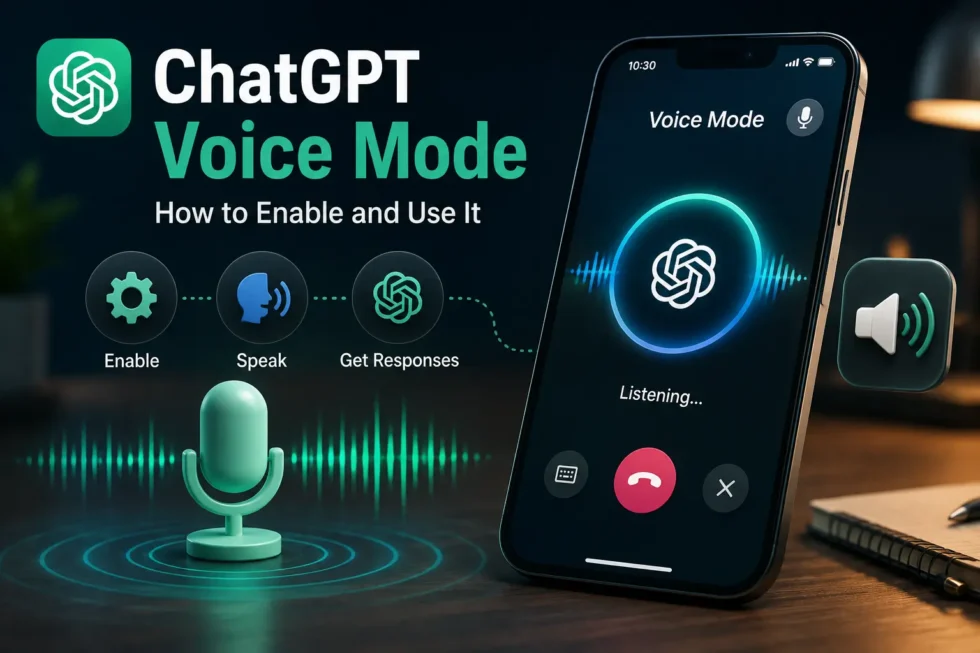
- Tap the headphone icon near the message bar.
- Grant microphone access if prompted.
- Start speaking once the listening animation appears.
- Tap the screen or say your next question to continue the conversation.
On Desktop and Web
- Open ChatGPT in your browser or desktop app.
- Click the voice icon next to the message input field.
- Allow microphone permissions in your browser settings.
- Speak naturally, and ChatGPT responds through your speakers.
- Click the X or say “stop” to end the session.
Voice Mode currently requires a stable internet connection, since audio processing happens on OpenAI’s servers rather than your device.
How to Use ChatGPT Voice Mode Effectively
Enabling the feature is easy, but a few habits make conversations noticeably smoother.
Speak in Complete Thoughts
Short, choppy phrases sometimes confuse the speech recognition. Full sentences give ChatGPT clearer context and produce more accurate, relevant responses.
Choose a Voice That Fits Your Task
ChatGPT offers several distinct voice options, each with a different tone and pacing. Test a few during a casual conversation, then pick one that matches your use case, whether that’s brainstorming, tutoring, or quick fact-checking.
Interrupt When You Need To
Unlike a phone call, you don’t need to wait for ChatGPT to finish talking. Speak over it to redirect the conversation, and Advanced Voice Mode will pause and adjust immediately.
Combine Voice Mode With Custom Instructions
Your saved Custom Instructions still apply during voice conversations. Set a preferred tone or response length in advance, and ChatGPT carries those preferences into spoken replies automatically.
Best Use Cases for ChatGPT Voice Mode
Voice conversations work especially well in a few common scenarios.
- Hands-free multitasking, such as cooking, driving, or exercising.
- Language practice, since Voice Mode handles pronunciation and conversational flow naturally.
- Brainstorming on the go, without needing to type out full ideas.
- Accessibility support for users who find typing difficult or slow.
Common ChatGPT Voice Mode Problems and Fixes
Voice features rely on several moving parts, so occasional hiccups happen.
- Microphone isn’t detected. Check your browser or app permissions, then restart the session.
- Voice Mode cuts out mid-response. This usually points to a weak internet connection, so switch networks and try again.
- ChatGPT misunderstands spoken words. Reduce background noise, and speak slightly slower in loud environments.
- Voice option looks greyed out. Confirm your account tier supports Voice Mode, since some regions and plans roll it out gradually.
For broader troubleshooting steps beyond voice-specific issues, revisit our complete ChatGPT troubleshooting guide.
Privacy Considerations for ChatGPT Voice Mode
Voice conversations get processed the same way text conversations do, and they follow the same data and memory settings. If you’d rather keep a spoken session out of your history, start it in Temporary Chat mode before switching to voice. Recordings aren’t stored as raw audio long-term; OpenAI converts speech to text for processing.
Final Thoughts
ChatGPT Voice Mode makes hands-free, natural conversation genuinely practical, whether you’re multitasking, practicing a language, or just prefer talking over typing. Pairing it with strong Custom Instructions and a well-managed Memory setup creates the most personalized experience possible. Explore our full ChatGPT troubleshooting guide for more fixes, and browse the hidden features and productivity tips cluster for more ways to get the most out of ChatGPT.