Best ChatGPT Custom Instructions for Better Responses 2026
ChatGPT Custom Instructions let you shape how the assistant responds before a conversation even starts. Instead of repeating your preferences in every chat, you write them once, and ChatGPT applies them automatically going forward. This guide covers the best ChatGPT Custom Instructions for common use cases, how to set them up correctly, and mistakes that quietly weaken their effect.
This article is part of our cluster on Hidden ChatGPT Features, Productivity Tips and Advanced Settings, which sits under our main resource, ChatGPT Problems, Fixes, Tips & Hidden Features (2026): The Complete Troubleshooting Guide. If you haven’t set up memory yet, our guide on how to use ChatGPT Memory effectively pairs well with this one.
What Are ChatGPT Custom Instructions?
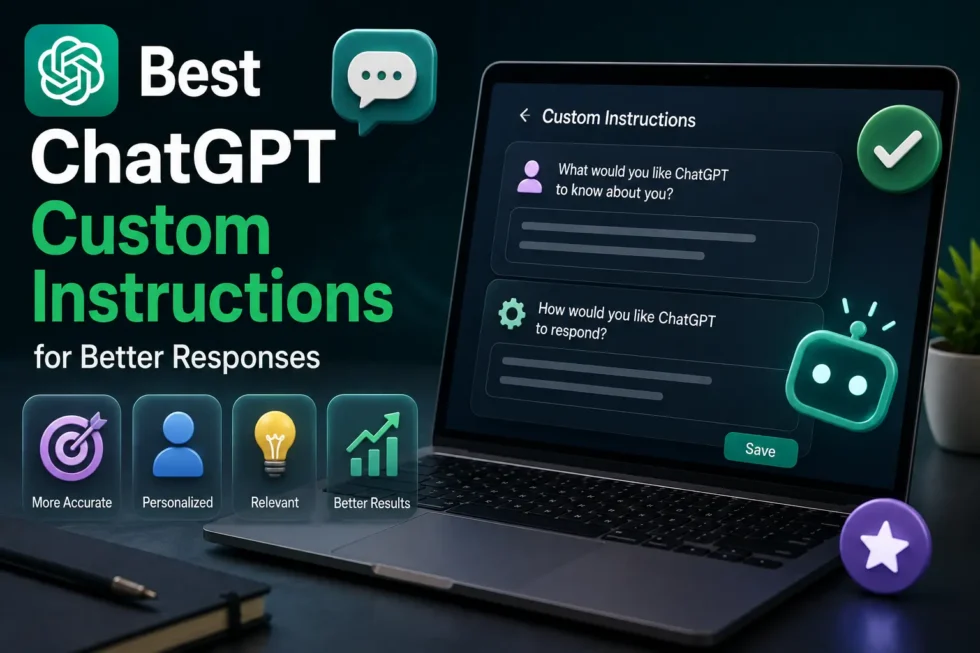
Custom Instructions are a settings panel where you tell ChatGPT how to behave across every new chat. OpenAI splits the panel into two boxes. The first box covers background information about you, and the second box covers how you want ChatGPT to respond.
Unlike memory, which builds gradually from your conversations, Custom Instructions stay fixed until you edit them manually. That makes them ideal for permanent preferences like tone, formatting, or expertise level.
How to Set Up ChatGPT Custom Instructions
Setup takes just a few clicks. Here’s the process:
- Open ChatGPT and click your profile icon.
- Select Settings, then Personalization.
- Click Custom Instructions.
- Fill in both boxes: “What would you like ChatGPT to know about you?” and “How would you like ChatGPT to respond?”
- Save your changes and start a fresh chat to see the difference.
Free, Plus, and Team accounts all support this feature, though enterprise admins can restrict it.
Best ChatGPT Custom Instructions by Use Case
Different goals call for different instruction styles. Below are proven examples you can copy, adapt, and combine.
Custom Instructions for Concise, Direct Answers
If ChatGPT’s answers feel bloated, try this: “Keep responses short and direct. Skip disclaimers and unnecessary background unless I ask for detail.” This single line noticeably trims filler text.
Custom Instructions for Professional Writing
Writers and marketers often want a consistent voice. Try: “Write in a professional but conversational tone. Avoid jargon, and use active voice wherever possible.” ChatGPT applies this style automatically to drafts, emails, and outlines.
Custom Instructions for Developers
Coders benefit from strict formatting rules. Use something like: “I’m a Python and JavaScript developer. Always include comments in code, and explain trade-offs briefly after each snippet.” This setup saves time across every technical conversation.
Custom Instructions for Learning and Study
Students and lifelong learners can turn ChatGPT into a patient tutor. Try: “Explain concepts step by step, check my understanding with a quick question, and avoid giving the full answer immediately.” This encourages deeper engagement instead of passive reading.
Custom Instructions for Business and Strategy Advice
For sharper business input, add: “Act as a skeptical strategic advisor. Challenge weak assumptions and point out risks before offering recommendations.” This instruction pushes ChatGPT past generic, overly agreeable answers.
Common Mistakes That Weaken ChatGPT Custom Instructions
Even well-written instructions sometimes underperform, usually for a few predictable reasons.
- Instructions are too vague. “Be helpful” gives ChatGPT nothing concrete to act on.
- Too many conflicting rules stack up. Contradictory instructions confuse tone and formatting choices.
- Instructions never get updated. Old rules about a past job or project quietly skew new responses.
- Users expect Custom Instructions to replace memory. The two features solve different problems, and combining them works best.
ChatGPT Custom Instructions vs Memory: Which Should You Use?
This question comes up constantly, and the honest answer is both. Custom Instructions define stable, unchanging preferences, like tone, formatting, and expertise level. Memory, on the other hand, tracks evolving context, like current projects or short-term goals.
For a full breakdown of how memory works and how to manage it, see our guide on using ChatGPT Memory effectively. Together, these two features create a genuinely personalized ChatGPT setup.
Advanced Tips for Power Users
A few extra techniques help experienced users squeeze more value out of this feature.
- Write instructions like rules, not requests, using imperative phrasing such as “Always” or “Never” for consistency.
- Test one change at a time so you can identify exactly which instruction improved or hurt your results.
- Keep a backup copy of your instructions in a notes app, since switching accounts or devices sometimes requires re-entry.
- Revisit instructions monthly, especially after major role changes or shifts in your writing goals.
Final Thoughts
The best ChatGPT Custom Instructions turn a generic assistant into a consistent, on-brand collaborator. Small, specific rules outperform vague requests every time, and pairing instructions with memory rounds out a fully personalized setup. Explore our full ChatGPT troubleshooting guide for more fixes, and browse the hidden features and productivity tips cluster for more ways to customize ChatGPT.