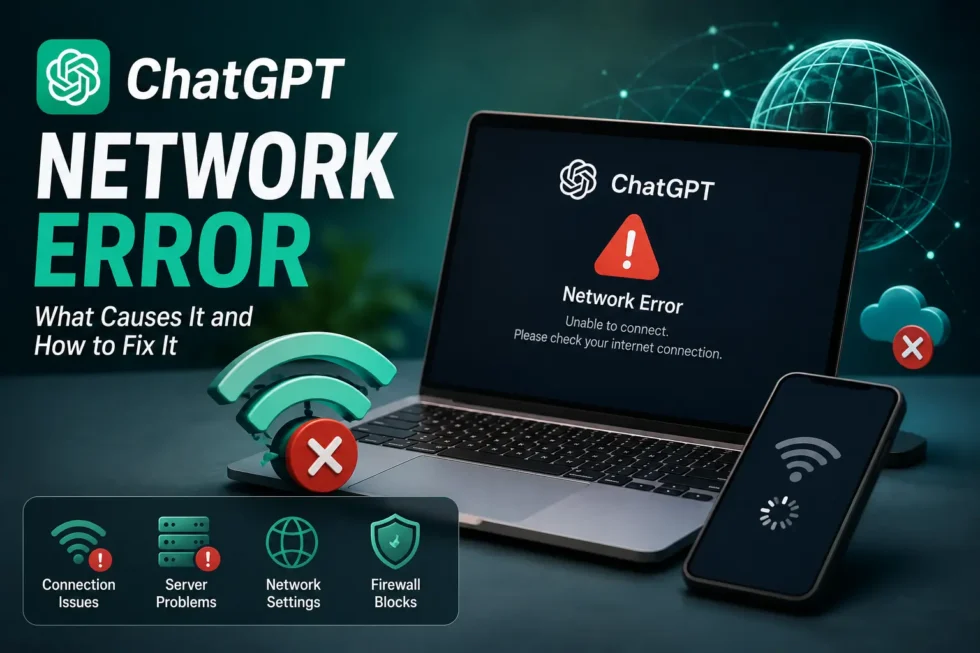
ChatGPT Network Error What Causes It and How to Fix It Guide
A ChatGPT network error is one of the most common roadblocks users hit when trying to chat with the AI, and it usually shows up at the worst possible moment. You type a prompt, hit enter, and instead of a response you get a red banner telling you something went wrong with the connection. This guide breaks down exactly why a ChatGPT network error happens, walks through proven fixes, and helps you tell the difference between a problem on your end and an outage on OpenAI’s side. If you’re also dealing with other ChatGPT issues, our cluster guide on common ChatGPT errors and performance problems covers the full list, and our pillar troubleshooting hub is the best starting point for any ChatGPT-related headache.
What Is a ChatGPT Network Error?
A network error in ChatGPT means the app or website couldn’t establish or maintain a stable connection to OpenAI’s servers. Unlike a server-side outage, this error often points to something local — your Wi-Fi, your browser, your VPN, or even a firewall setting. ChatGPT relies on a continuous connection to stream responses in real time, so any interruption along that path can trigger the error message.
You might see this issue labeled differently depending on your device. Desktop users often see “Network Error” printed directly in the chat window. Mobile app users sometimes get a spinning wheel that never resolves. Browser users occasionally see a failed request logged in the console. All three point to the same underlying category of problem.
Common Causes of ChatGPT Connection Errors
Several factors can trigger a ChatGPT network error, and identifying the right one saves you time. Below are the most frequent culprits, ranked roughly by how often they appear in user reports.
1. Unstable or Weak Internet Connection
Weak Wi-Fi signals, congested networks, or spotty mobile data are the leading cause of ChatGPT connectivity issues. Because ChatGPT streams text token by token, even brief drops in bandwidth can interrupt a response mid-sentence and trigger an error.
2. VPN or Proxy Interference
VPNs and proxies frequently cause ChatGPT network errors because OpenAI actively blocks certain IP ranges associated with restricted regions or known abuse. Switching servers, disabling the VPN temporarily, or whitelisting OpenAI’s domains often resolves this instantly.
3. Browser Extensions and Cached Data
Ad blockers, privacy extensions, and corrupted cache files can silently interfere with ChatGPT’s requests. Extensions that block trackers or scripts sometimes flag ChatGPT’s streaming connections as suspicious activity, cutting them off before a response completes.
4. Firewall or Antivirus Restrictions
Overly aggressive firewall rules or antivirus software can block outbound connections to OpenAI’s servers, especially on corporate or school networks. This is a common source of ChatGPT network errors for users on managed devices.
5. OpenAI Server-Side Outages
Sometimes the issue isn’t you at all. OpenAI’s servers occasionally experience downtime or degraded performance during traffic spikes, and a temporary outage can produce the exact same network error message on your end.
6. Outdated App Version or Browser
Running an old version of the ChatGPT mobile app or an outdated browser can create compatibility issues with OpenAI’s current API endpoints, leading to intermittent connection failures.
How to Fix a ChatGPT Network Error: Step-by-Step
Work through these fixes in order. Most people resolve their ChatGPT network error within the first three steps.
Step 1: Check Your Internet Connection
Run a quick speed test or try loading another site to confirm your connection is stable. Restarting your router often clears temporary congestion issues and immediately restores a normal connection.
Step 2: Disable Your VPN or Proxy
Turn off any VPN or proxy service and reload ChatGPT. If the error disappears, your VPN’s IP address was likely flagged, and switching to a different server location should fix the ChatGPT connection error going forward.
Step 3: Clear Browser Cache and Cookies
Corrupted cache data is a surprisingly common trigger for ChatGPT errors. Clear your browser’s cache and cookies, then reload the page in a fresh session to rule this out.
Step 4: Disable Browser Extensions Temporarily
Ad blockers and script blockers can interfere with ChatGPT’s real-time connection. Disable your extensions one at a time, refreshing ChatGPT after each, until you identify the culprit.
Step 5: Try a Different Browser or Device
Switching to another browser, or testing the ChatGPT mobile app instead of the website, quickly tells you whether the problem is device-specific or connection-wide.
Step 6: Check OpenAI’s Status Page
Before assuming the fault is yours, visit OpenAI’s official status page to check for reported outages. A widespread server issue means the fix isn’t on your end at all — you’ll just need to wait it out.
Step 7: Update the App or Browser
Make sure you’re running the latest version of the ChatGPT app and your browser. Updates frequently include fixes for connection stability and compatibility with OpenAI’s servers.
Step 8: Restart Your Device
A full device restart clears background processes that might be silently blocking network requests, and it remains one of the simplest, most effective fixes available.
When to Contact OpenAI Support
If you’ve worked through every fix above and the ChatGPT network error persists, the issue may involve your account, region, or an unresolved bug on OpenAI’s side. Reach out to OpenAI support with details about your device, browser, and the exact error message for the fastest resolution.
Preventing Future ChatGPT Network Errors
A few habits reduce how often you’ll encounter this error going forward. Keep your app and browser updated, avoid unreliable public Wi-Fi for long chat sessions, and periodically clear your cache even before problems appear. Reliable hardware and a stable connection go a long way toward keeping ChatGPT running smoothly.
Final Thoughts
A ChatGPT network error is almost always fixable, and in most cases the cause is a local connection, VPN conflict, or outdated app rather than a deeper problem with your account. Work through the steps above methodically, and you’ll usually be back to chatting within minutes. For a broader look at every ChatGPT issue and how to solve it, check out our full cluster guide on common ChatGPT errors and performance problems, and browse the complete ChatGPT troubleshooting pillar page for tips, fixes, and hidden features across the entire platform.