ChatGPT API Key Not Working Common Errors and Fixes 2026
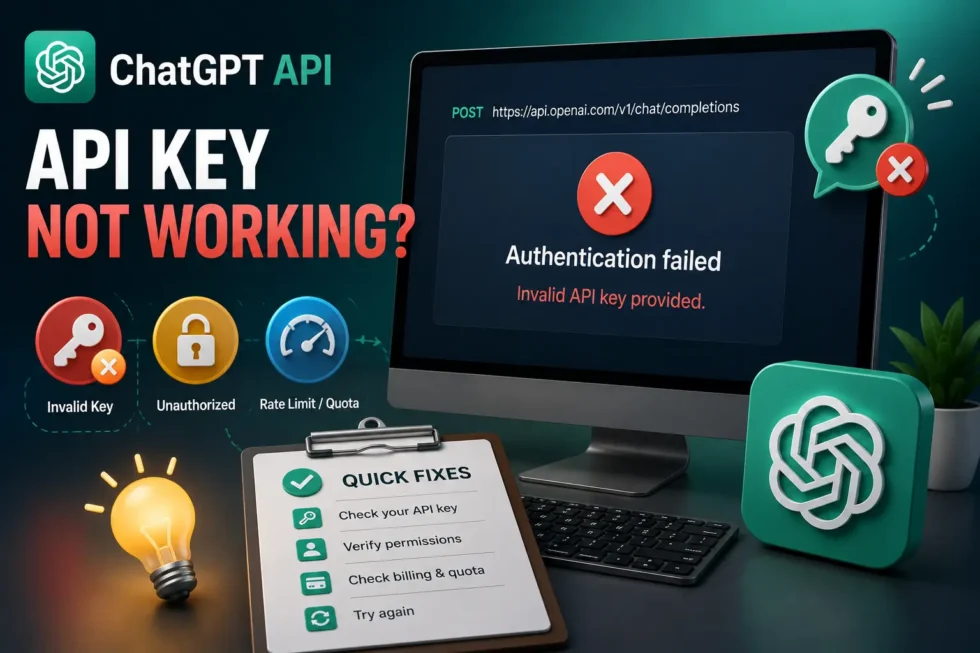
A ChatGPT API key not working is one of the most common blockers developers hit, and it rarely means your code is broken. Most failures trace back to five predictable causes: a bad environment variable, a stray character, a revoked key, an organization mismatch, or a rate limit. This guide walks through each one and shows you the fastest fix.
For pricing, free credits, and model comparisons, see our ChatGPT API Guide: Pricing, Free Credits, Keys, Models & Common Errors. If your issue lives inside the chat app rather than the API, our ChatGPT troubleshooting guide covers those fixes separately.
Why Your ChatGPT API Key Stops Working
OpenAI’s platform grew stricter throughout 2026, and authentication failures now outnumber prompt-related errors. Most developers assume a key failure means “bad code.” In reality, the request usually never reaches the model at all. Something blocks it before that point, whether that’s a missing header, a formatting slip, or a key that no longer exists on OpenAI’s servers.
Isolating the cause takes one simple test. Run a direct curl request against the models endpoint before touching your application code:
curl https://api.openai.com/v1/models -H "Authorization: Bearer $OPENAI_API_KEY"If that command fails, the problem sits with the key or your environment. If it succeeds, the bug lives somewhere in your application logic instead.
ChatGPT API Key Not Working Due to a 401 Authentication Error
A 401 error means OpenAI never authenticated your request in the first place. It’s the single most common reason a ChatGPT API key stops working, and it usually comes down to one of three root causes.
Missing or Misplaced Environment Variable
Most client libraries look for a variable named exactly OPENAI_API_KEY. Variants like OPENAI_KEY or OPENAI_TOKEN won’t be recognized. Setting the variable in one terminal and running your code from another, common with Docker containers or IDE run configurations, also breaks authentication silently. Export the variable, then restart your terminal or IDE so the change actually takes effect.
Extra Spaces or Hidden Characters
Copying a key from OpenAI’s dashboard sometimes drags along a hidden newline or leading space. A key like " sk-proj-..." fails without any obvious explanation. Paste the key into a plain text editor first, strip any whitespace, and confirm there’s no trailing line break before using it again.
Revoked, Expired, or Regenerated Keys
Keys stop working the moment someone revokes them, whether that’s you, a teammate, or an automated security scan. Old keys pasted from a stale secrets manager frequently fall into this category. Generate a fresh key from your OpenAI dashboard, update every place that references the old one, and retest immediately.
Wrong Organization or Project ID Errors
Some accounts belong to multiple organizations or projects, and each key ties to exactly one of them. Sending a request with the wrong organization or project ID triggers an authentication error even though the key itself is valid. Double-check which organization your key belongs to in your account settings, then make sure your request headers match it exactly.
429 Rate Limit and Quota Errors
A 429 error means OpenAI has throttled your account or project, not that your key stopped working. This shows up most often when moving from local testing into a production environment with real user traffic. Background jobs running unattended are a frequent culprit, since they can silently burn through your quota overnight.
Fixing this usually means one of two things. Either slow down your request rate with backoff logic, or upgrade your usage tier for higher limits. Both approaches restore stability quickly once applied.
Bad Request and Invalid Request Errors
If your key authenticates fine but requests still fail, the problem usually sits in the request itself. Errors labeled “Invalid Request” or “Bad Request” mean OpenAI received your call but couldn’t process it as written. This happens often after switching models or upgrading an SDK version, since parameter names and defaults sometimes change between releases.
Simplify the request and rebuild it piece by piece to isolate the broken field. Removing optional parameters first usually narrows the problem fast.
Network and Connection Errors
Sometimes a ChatGPT API key not working actually has nothing to do with the key at all. Timeouts, dropped connections, and inconsistent responses often point to network issues instead. Confirm your server can reach OpenAI’s endpoints, check for corporate firewall restrictions, and retry with basic exponential backoff before assuming the credentials are at fault.
Quick Checklist to Fix a ChatGPT API Key Not Working
Run through these steps in order before opening a support ticket:
- Confirm the variable name is exactly
OPENAI_API_KEY, with no typos. - Strip hidden spaces or line breaks from the copied key.
- Regenerate the key if it might be old, revoked, or expired.
- Match the organization and project ID to the key you’re using.
- Check whether you’ve hit a rate limit or quota cap.
- Simplify the request body if authentication succeeds but calls still fail.
- Test raw connectivity with curl before blaming your application code.
Most authentication issues resolve within this checklist alone. Rarely do they require contacting OpenAI support directly.
Related Reading
For deeper coverage of pricing, free credits, and model selection, visit our ChatGPT API Guide: Pricing, Free Credits, Keys, Models & Common Errors. And for everything related to the ChatGPT app itself, our pillar guide, ChatGPT Problems, Fixes, Tips & Hidden Features (2026): The Complete Troubleshooting Guide, covers fixes well beyond the API.