Downloading and Managing PS Plus Games The Complete PlayStation Guide to Installing, Organizing, Updating, and Keeping Your Library Safe July 2026
For millions of PlayStation players, a PS Plus subscription delivers instant access to hundreds of games every year. However, many subscribers never learn how to properly download, organize, manage, and preserve their growing digital library. Poor storage management, expired licenses, missed download deadlines, and accidental deletions can prevent players from enjoying games they were entitled to claim.
This guide explains everything you need to know about downloading and managing PS Plus games across PlayStation 4 and PlayStation 5. Whether you subscribe to Essential, Extra, or Premium, understanding how the PlayStation ecosystem works helps you maximize every monthly release while avoiding common mistakes.
If you’re looking for the complete breakdown of PlayStation Plus Free Games July 2026, including release schedules, monthly lineups, reviews, and the best titles available in every subscription tier, read our pillar guide: PlayStation Plus Free Games July 2026: Complete Guide to Essential, Extra and Premium Games, Release Dates, Download Deadlines, Reviews and Best Picks.
By the end of this article, you’ll know how to claim every eligible game, manage storage efficiently, restore licenses, troubleshoot download issues, and keep your PlayStation library organized for years.
Why Proper PlayStation Game Management Matters
Many players believe downloading a game is the final step. In reality, effective PlayStation game management begins long before installation and continues throughout the life of your subscription.
Every month Sony rotates new games into the PS Plus catalog. Essential titles become unavailable to claim after a limited period, while Extra and Premium catalogs regularly add and remove games. Missing a claim window could permanently prevent you from adding a title to your library, even if you maintain an active subscription.
Proper management also helps you:
- Avoid unnecessary storage shortages.
- Download games faster.
- Preserve save files.
- Reduce bandwidth usage.
- Prevent corrupted installations.
- Recover purchased or claimed games easily.
- Organize hundreds of digital titles efficiently.
Players who actively manage their libraries spend less time troubleshooting and more time playing.
Understanding How PlayStation Plus Downloads Work
Before downloading games, it’s important to understand how PS Plus licenses differ from traditional purchases.
When you redeem a PlayStation Plus game, Sony adds a digital license to your account instead of transferring ownership. As long as your subscription remains active and the license stays valid, you can download and play eligible titles.
The exact rules vary depending on your subscription tier.
PS Plus Essential Downloads
Essential games remain in your library forever after you claim them during the monthly availability window. Even if you uninstall the game, you can download it again whenever your subscription becomes active.
If your subscription expires, access pauses until you renew your membership.
PS Plus Extra Catalog Downloads
Extra subscribers receive access to hundreds of downloadable PlayStation games.
Unlike Essential games, these titles remain available only while Sony keeps them in the Game Catalog.
If a game leaves the catalog before you download it, access ends unless you purchase the game separately.
Because of this limitation, downloading priority titles early is often a smart strategy.
PS Plus Premium Downloads
Premium subscribers receive everything included in Extra alongside additional benefits such as:
- Classic PlayStation titles
- Game trials
- Cloud streaming (supported regions)
- Retro PlayStation games
Many Premium games support direct downloads, while others can be streamed depending on availability.
Understanding which games support downloads helps you plan storage requirements more effectively.
How to Download PS Plus Games on PlayStation 5
Downloading games on the PlayStation 5 is straightforward once you’ve claimed the title.
Follow these steps:
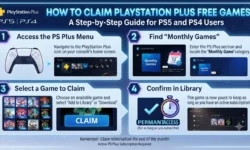
Step 1: Open PlayStation Plus
From the PS5 home screen:
Games → PlayStation Plus
Here you’ll find:
- Monthly Games
- Game Catalog
- Classics Catalog
- Game Trials
Browse the available collections according to your subscription level.
Step 2: Claim Eligible Games
Select the title you want.
Choose:
Add to Library
This permanently attaches eligible monthly games to your PlayStation account while they’re available for claiming.
Never skip this step.
Many players mistakenly install a game without confirming it has been added to their library first.
Step 3: Download the Game
After adding the game:
Select:
Download
The PlayStation console immediately begins downloading the game to your internal SSD or expanded storage.
While downloading, you can:
- Pause the download
- Resume later
- Prioritize the download
- Cancel and restart if necessary
Managing downloads carefully prevents bandwidth conflicts with system updates or multiplayer sessions.
Step 4: Monitor Download Progress
Open:
Downloads/Uploads
This screen displays:
- Remaining download time
- Installation progress
- Update status
- Queue order
- Error notifications
Large AAA PlayStation games often exceed 100 GB, making download monitoring especially useful for slower internet connections.
How to Download PS Plus Games on PlayStation 4
Although the interface differs slightly, downloading PS Plus games on PS4 follows nearly the same process.
Open the PlayStation Plus application from the dashboard.
Browse available monthly games or catalog titles.
Choose the game.
Select:
Add to Library
Then choose:
Download
The PS4 stores downloaded games on its internal hard drive or an approved external USB drive.
Players using older PS4 models should periodically check available storage because modern PlayStation games can consume significant disk space.
Downloading PS Plus Games Through the PlayStation App
The PlayStation mobile app makes remote downloads surprisingly convenient.
If your console remains connected to the internet and Rest Mode is enabled, you can begin downloading games even while away from home.
To use this feature:
- Open the PlayStation App.
- Sign in with your PlayStation account.
- Open the PS Plus section.
- Select a game.
- Tap Download to Console.
- Choose your registered PlayStation system.
Your console automatically starts downloading the selected game.
This feature is especially useful when new monthly PS Plus games become available. You can claim and queue downloads immediately without waiting until you return home, ensuring your games are ready to play later.
Choosing the Right Storage Location for PlayStation Games
One of the biggest challenges for modern PlayStation owners is managing limited storage space. Many PS5 titles exceed 80–120 GB, while players with large PS Plus libraries can easily fill even a high-capacity SSD.
Understanding where different games can be installed helps you make better use of your storage.
Internal SSD Storage
The built-in SSD delivers the fastest loading times and is required for native PS5 games. Keeping your most-played titles here ensures the best performance and minimizes loading screens.
Expanded M.2 SSD Storage
Installing a compatible M.2 SSD significantly increases available space without sacrificing speed. This is an excellent option for players who frequently download games from the PS Plus Extra or Premium catalogs and want quick access to multiple titles.
External USB Storage
External drives work well for storing and playing PS4 games. They can also be used to archive PS5 games when you’re not actively playing them, allowing you to move games back to the internal SSD later instead of downloading them again.
Managing Your PlayStation Library for Faster Access
As your PlayStation collection grows through monthly PS Plus releases and digital purchases, finding specific games can become increasingly difficult. A well-organized library saves time, reduces clutter, and makes it easier to revisit older titles whenever you want.
Instead of scrolling through hundreds of icons, take advantage of the organizational tools built into the PlayStation interface.
Organize Your PS Library by Installed and Purchased Games
Both PlayStation 4 and PlayStation 5 separate installed games from your complete digital collection.
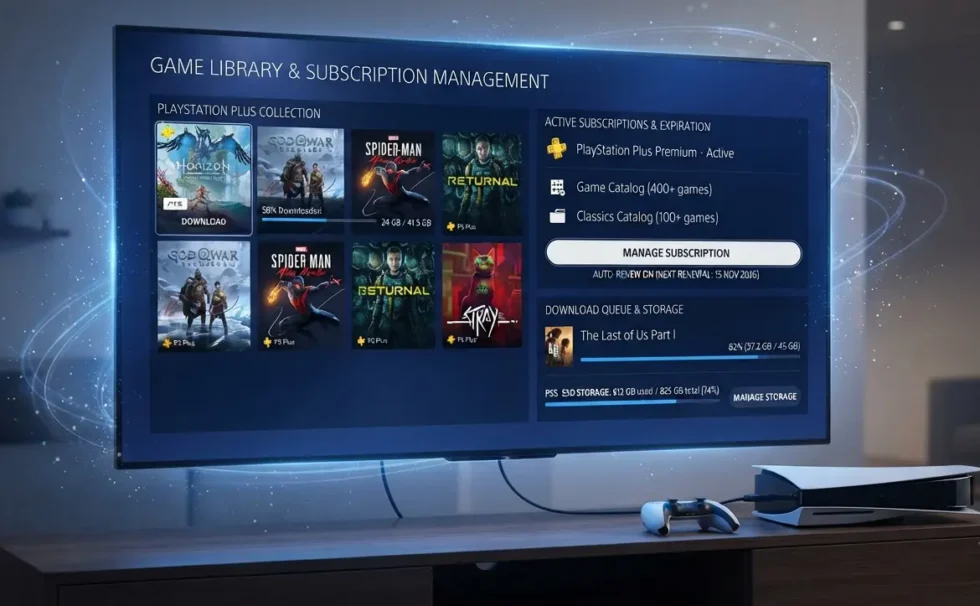
Your installed games appear on the home screen, while every claimed or purchased title remains accessible through the Game Library.
Using this distinction helps you identify games that are ready to play versus those that need downloading.
If your storage becomes full, uninstalling a game does not remove it from your PlayStation account. The license remains attached to your profile, allowing you to download the title again whenever you choose, provided your subscription still grants access.
Use Filters to Find PS Plus Games Quickly
The Game Library includes several filters that make navigation much easier.
You can sort games by:
- Name
- Recently played
- Recently purchased
- Installed status
- Platform
- PlayStation Plus entitlement
These filters become especially valuable for subscribers who have claimed dozens of monthly PlayStation Plus games over several years.
Create Game Lists on PlayStation 5
PlayStation 5 introduces Game Lists, allowing players to group titles into custom collections.
For example, you might create lists such as:
- Multiplayer Games
- RPG Collection
- Family Games
- Horror Titles
- Games to Finish
- PS Plus Monthly Picks
Rather than searching your entire library, you can open a specific list and launch the game you want immediately.
This feature is particularly useful for subscribers who frequently download games from the PS Plus Extra catalog.
How to Delete and Reinstall PS Plus Games Without Losing Access
One of the biggest misconceptions surrounding PlayStation Plus is that deleting a game permanently removes it from your account.
Fortunately, that is not how the service works.
When you uninstall a claimed game, only the installed files disappear from your storage device. Your digital license remains linked to your PlayStation account as long as your subscription and entitlement remain valid.
This means you can safely remove games to free storage without worrying about losing your collection.
How to Delete a Game
Deleting a title requires only a few steps.
On PlayStation 5:
- Highlight the game on the Home Screen.
- Press the Options button.
- Select Delete.
- Confirm the deletion.
The console removes the installed files while preserving your ownership record.
How to Download the Game Again
If you decide to revisit the game later:
- Open your Game Library.
- Locate the title.
- Select Download.
- Wait for installation to finish.
Provided the title remains available under your subscription or ownership, the download begins immediately.
For PS Plus Essential games that you claimed during their availability window, reinstalling is possible at any time while your subscription remains active.
Understanding PS Plus Game Licenses
Digital licenses determine whether a game can launch on your console.
Whenever you start a PS Plus title, PlayStation checks whether your account still holds a valid entitlement.
Several situations can affect that verification.
For example:
- Your subscription has expired.
- The console has not connected to PlayStation Network for an extended period.
- A temporary licensing error has occurred.
- A Game Catalog title has left the Extra or Premium catalog.
Knowing how licenses function helps you resolve many common problems without contacting support.
How to Restore PlayStation Licenses
Occasionally, a game you legitimately claimed may display a lock icon or refuse to launch.
In many cases, restoring licenses fixes the issue within minutes.
On PlayStation 5:
- Open Settings.
- Select Users and Accounts.
- Choose Other.
- Select Restore Licenses.
- Confirm the process.
The console synchronizes your account with PlayStation’s servers and refreshes your digital entitlements.
Players should try this solution before deleting and reinstalling a game, as it often resolves access problems much more quickly.
Managing Automatic Downloads and Game Updates
Keeping your PlayStation system updated ensures that downloaded games remain secure, stable, and ready to play.
Fortunately, the console can handle much of this work automatically.
Automatic downloads save time because updates install in the background instead of waiting until you launch the game.
Enable Automatic PS Game Updates
To activate automatic updates:
Open Settings, navigate to Saved Data and Game/App Settings, and enable automatic updates for games and applications.
Once enabled, your console periodically checks for new patches while connected to the internet.
This feature reduces waiting time before gaming sessions, especially for multiplayer titles that require the latest version.
Best Storage Management Strategies for PlayStation and PS Plus Subscribers
Downloading new PlayStation games every month quickly fills available storage, especially for subscribers who enjoy the large catalogs offered through PS Plus Extra and PS Plus Premium. A thoughtful storage strategy helps you install more games, reduce download time, and avoid constantly deleting titles you still plan to play.
Instead of waiting until your console displays a storage warning, review your available space regularly and remove games you have already finished. This habit keeps enough free capacity for monthly PlayStation Plus releases and major game updates.
Prioritize Frequently Played PS Games
Not every game needs to remain installed at all times.
Keep multiplayer games, current favorites, and titles you actively play on your fastest storage device. Archive older games that you may revisit later.
For example, if you regularly play online shooters or sports games, leaving them installed prevents lengthy downloads before every session. Story-driven games that you have completed can safely be removed because you can reinstall them later if your license remains valid.
This simple approach keeps your PlayStation library flexible without sacrificing convenience.
Move PS5 Games Instead of Downloading Them Again
Modern PlayStation games often exceed 100 GB, making repeated downloads both time-consuming and bandwidth-intensive.
Rather than deleting finished PS5 games permanently, move them to compatible external storage if available. Although they cannot run directly from most USB drives, transferring them back to the internal SSD is usually much faster than downloading the entire game again.
Players with internet data limits benefit significantly from this method because it reduces unnecessary bandwidth usage.
Separate PS4 and PS5 Games
If you own both PlayStation 4 and PlayStation 5 titles, organizing them by platform simplifies storage management.
PS4 games perform well from external USB storage, leaving valuable SSD space available for native PS5 games that require faster internal storage.
Maintaining this separation helps you maximize every gigabyte while preserving excellent loading performance.
Common Mistakes PlayStation Plus Subscribers Should Avoid
Even experienced PlayStation players occasionally make simple mistakes that limit the value of their PS Plus subscription. Fortunately, most of these issues are easy to prevent with a little planning and regular account management.
Avoiding the following mistakes helps you build a larger library, protect your game progress, and enjoy uninterrupted access to your favorite titles.
Forgetting to Claim Monthly PS Plus Games
One of the most costly mistakes is assuming monthly games automatically appear in your library.
PlayStation Plus Essential titles must be claimed during their availability period. If you miss the claim window, the opportunity usually disappears permanently unless Sony offers the game again in the future.
Make it a habit to visit the PlayStation Plus page each month and add every available title to your library, even if you do not plan to play it immediately. Your interests may change later, and claiming the game now gives you the option to enjoy it in the future.
Ignoring Download Deadlines for Leaving Game Catalog Titles
Subscribers to PS Plus Extra and PS Plus Premium should also monitor games scheduled to leave the catalog.
Unlike Essential games, these titles are not permanently attached to your account. Once Sony removes a game from the Game Catalog, your subscription no longer provides access unless you purchase the title separately.
Checking the monthly “Last Chance to Play” announcements allows you to prioritize games before they disappear.
Best Practices for Downloading and Managing PS Plus Games
Managing your PlayStation library becomes much easier when you develop a consistent routine. Rather than reacting to storage shortages or download errors, following a few simple habits keeps your system organized throughout the year.
Consider adopting these best practices:
- Claim every monthly PS Plus Essential game before the deadline.
- Download high-priority Game Catalog titles before they leave the service.
- Keep your PlayStation system software updated.
- Enable automatic game updates and cloud save synchronization.
- Restore licenses if a game unexpectedly becomes locked.
- Remove completed games instead of allowing storage to become full.
- Organize your Game Library using filters or Game Lists.
- Upgrade your storage if you regularly install large PlayStation games.
- Review monthly PlayStation Plus announcements to stay informed about new additions and removals.
Following these habits helps you spend less time managing your console and more time enjoying your games.
Expert Tips to Maximize Your PlayStation Plus Subscription
A PlayStation Plus subscription offers far more value than simply providing access to free monthly games. Small adjustments to the way you download and organize your library can significantly improve your overall experience.
Here are several practical tips used by long-time subscribers:
Download Smaller Games Between Major Releases
Large AAA games can occupy over 100 GB of storage. Balancing these with smaller indie titles helps you enjoy a wider variety of games without filling your SSD too quickly.
Check Monthly Announcements Early
Sony usually announces new PlayStation Plus games before they become available.
Reviewing these announcements allows you to prepare storage space, schedule downloads, and decide which titles deserve priority.
Keep Your Wishlist Updated
Adding games to your PlayStation Wishlist makes it easier to track discounts if a favorite title eventually leaves the PS Plus catalog.
Purchasing a discounted game later allows you to continue playing even after it rotates out of the subscription service.
Frequently Asked Questions About Downloading and Managing PS Plus Games
Can I Play PS Plus Games After My Subscription Expires?
No. Once your PlayStation Plus membership expires, access to eligible subscription games pauses. Renewing your subscription restores access to previously claimed Essential games and eligible catalog titles that remain available.
Will I Lose My Game Saves If I Delete a PS Plus Game?
No. Deleting a game removes the installation files but does not automatically delete your saved progress.
If you use PlayStation Plus cloud storage or keep local save data on your console, you can continue from your previous progress after reinstalling the game.
Can I Download a PS Plus Game More Than Once?
Yes. You may download a claimed PlayStation Plus game as many times as needed, provided your digital license remains valid and your subscription still grants access.
Why Does My PS Plus Game Show a Lock Icon?
A lock icon usually indicates a licensing issue.
Restoring PlayStation licenses, verifying your subscription status, or reconnecting your console to PlayStation Network often resolves the problem.
Do I Need an Internet Connection to Play Downloaded PS Plus Games?
Many downloaded games can be played offline after installation. However, your console periodically verifies your subscription status, so connecting to PlayStation Network occasionally helps maintain uninterrupted access.
Conclusion
Downloading games is only the first step toward getting the most from your PlayStation experience. Effective PS Plus management involves claiming monthly titles before their deadlines, organizing your growing library, protecting save files through cloud backups, maintaining sufficient storage, and understanding how digital licenses work.
By following the strategies outlined in this guide, you can avoid common problems such as locked games, failed downloads, lost progress, and unnecessary storage shortages. A well-managed PlayStation library also makes it easier to enjoy new releases without constantly reorganizing your console.
To stay informed about the latest PlayStation Plus lineup, monthly free games, release schedules, download deadlines, reviews, and the best recommendations for every subscription tier, continue with our comprehensive pillar guide:
Whether you subscribe to PS Plus Essential, Extra, or Premium, combining the information in this guide with the latest monthly updates will help you maximize every benefit your PlayStation membership has to offer.